

Getting Started with Zoom: Download and First Call
Learn how to download Zoom, create your account, and join your first video meeting.

Your camera or microphone isn't working? We'll walk through simple fixes like checking permissions, testing devices, and adjusting settings so you can be heard and seen clearly.
Editorial Team
Written by the haraldmahrenholz editorial team, focused on practical, easy-to-follow guidance for learning video calling and messaging apps.
Sound isn't coming through. Your camera shows a black screen. The other person can't see your face. These problems happen to everyone, especially when you're just starting out with video calls. Here's the good news — most of the time it's something simple to fix.
We're going to walk you through the most common issues and show you exactly how to troubleshoot them. You don't need to be tech-savvy. Just follow along step by step, and you'll get back to clear conversations in no time.
Your device needs permission to use your camera and microphone. Without it, the app simply can't access them. This is a privacy feature, and it's a good thing — it means apps can't spy on you without asking first.
On Windows: Go to Settings → Privacy & Security → Camera. You'll see a list of apps. Make sure the toggle is ON for Zoom, WhatsApp, or whatever app you're using. Do the same for Microphone in the next section down.
On Mac: Open System Preferences → Security & Privacy → Camera tab. You'll see which apps have permission. If your app isn't listed, you'll need to add it. Same process for Microphone.
On your phone (Android or iPhone): Go to Settings → Apps. Find the video calling app and tap it. Look for "Permissions" and make sure Camera and Microphone are both enabled. It's usually a toggle switch or checkbox.
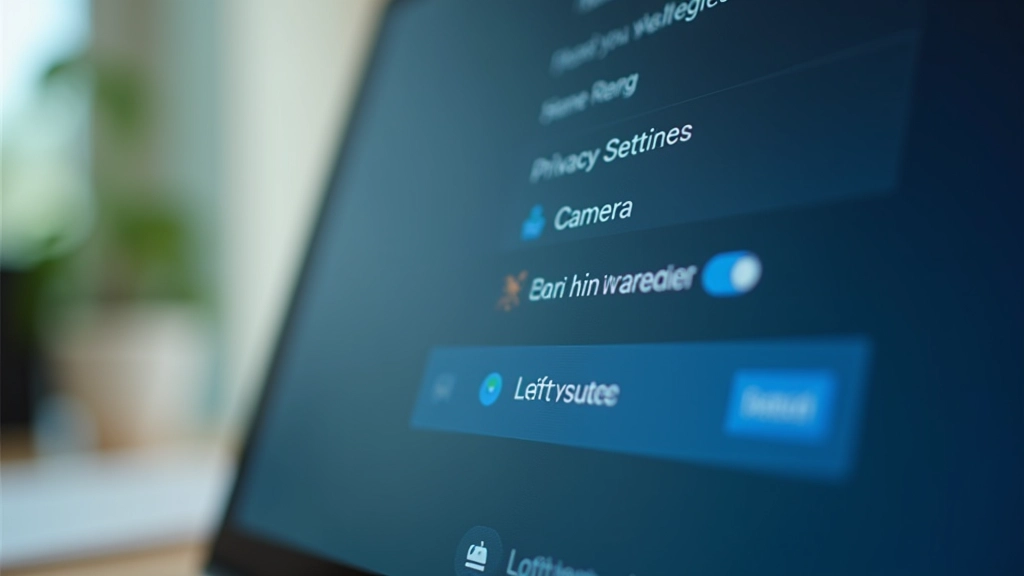

Most video calling apps have a settings or test area where you can check your camera and microphone before joining a real call. Use this. It takes 30 seconds and saves you from awkward "Can you hear me?" moments.
In Zoom: Click your profile picture in the top right, then Settings. Go to Audio or Video. You'll see your own video preview and can test your microphone. Speak into your device and watch the volume meter move. If the meter stays flat and silent, your microphone isn't being detected.
In WhatsApp: Open a call with a contact (don't actually call them yet). Before you hit the call button, check that your camera shows your face. If it's black or frozen, tap the camera icon to switch between front and back cameras.
Pay attention to the preview. If you see yourself clearly, your camera works. If the preview is frozen or shows a old image from 5 minutes ago, restart the app completely.
Digital tools and platforms change over time. Settings and menus in Zoom, WhatsApp, and other apps get updated regularly. If you can't find an option exactly as described here, check the official app's help section or website for the latest details. Take your time getting comfortable with anything new — there's no rush.
Sometimes the device works fine, but the settings are just wrong. Your microphone volume might be too low. Your camera might be set to a different device. These fixes take seconds once you know where to look.
For microphone volume: Look for a speaker icon or volume slider in your app. Drag it to about 70-80%. Too high and you'll sound distorted. Too low and people can't hear you. Test by speaking normally — not shouting, not whispering. Just your regular voice.
For camera selection: If you have multiple cameras (like a laptop built-in camera and an external USB camera), the app might be using the wrong one. In settings, there's usually a dropdown menu that says "Camera" or "Video Device." Click it and select the camera you actually want to use.
Check your background too. If your camera is working but showing something dark or blurry, it might just be pointing at a wall. Make sure there's enough light in front of you — ideally a window or lamp — so people can see your face clearly.


You've checked permissions. You've tested the audio. You've adjusted the settings. And it's still not working. Before you give up, try these last things.
First: Restart the app completely. Close it — really close it, not just minimize it to the background. Wait 10 seconds. Then open it again. You'd be surprised how often this fixes the problem. Apps sometimes get confused about which devices are available, and restarting clears that confusion.
Second: Restart your device if the app restart doesn't work. Turn off your computer or phone completely. Wait 30 seconds. Turn it back on. This refreshes everything — your operating system, your drivers, your permissions. It's the nuclear option, but it works more often than not.
Third: Try a different app. If Zoom's camera isn't working, try opening WhatsApp and testing there. If the camera works in WhatsApp but not Zoom, the problem is probably Zoom's settings, not your hardware. If the camera doesn't work in any app, then you know it's a device or permission issue.
Video call problems are frustrating, but they're almost always fixable. Start with permissions — they're the #1 culprit. Then test your devices. Adjust your settings if needed. Most issues resolve in just a few minutes.
Once your camera and microphone are working, you can focus on what actually matters — seeing your family, connecting with friends, or joining meetings without stress. These troubleshooting steps will come in handy whenever something goes wrong, and you'll know exactly what to do.
Check device permissions
Test before calling
Adjust settings
Restart if needed
Learn how to download Zoom, create your account, and join your first video meeting.
Everything you need to know about messaging on WhatsApp. We'll cover text messages, photos, and more.

Learn to share your screen during Zoom calls so others can see photos, documents, and more.