
WhatsApp Messaging Essentials: Send, Share, and Connect
Everything you need to know about messaging on WhatsApp. We'll cover text messages, photos, and group chats.

Learn how to download Zoom, create your account, and join your first video meeting in about 10 minutes. Covers both computer and tablet versions.
Written by
Editorial Team
Focused on practical, easy-to-follow guidance for learning video calling and messaging apps.
Video calling has become essential for staying connected. Whether you're checking in with family across the country or joining a community group meeting, Zoom makes it straightforward. We're going to walk you through every step — from downloading the app to joining your first call. Don't worry if you've never done this before. Millions of people use Zoom daily, and you'll get the hang of it quickly.
The whole process takes about 10 minutes. We'll cover Windows computers, Macs, iPads, and tablets. Each device works slightly differently, but the core steps are the same. By the end of this guide, you'll know how to join a meeting and feel confident using the platform.
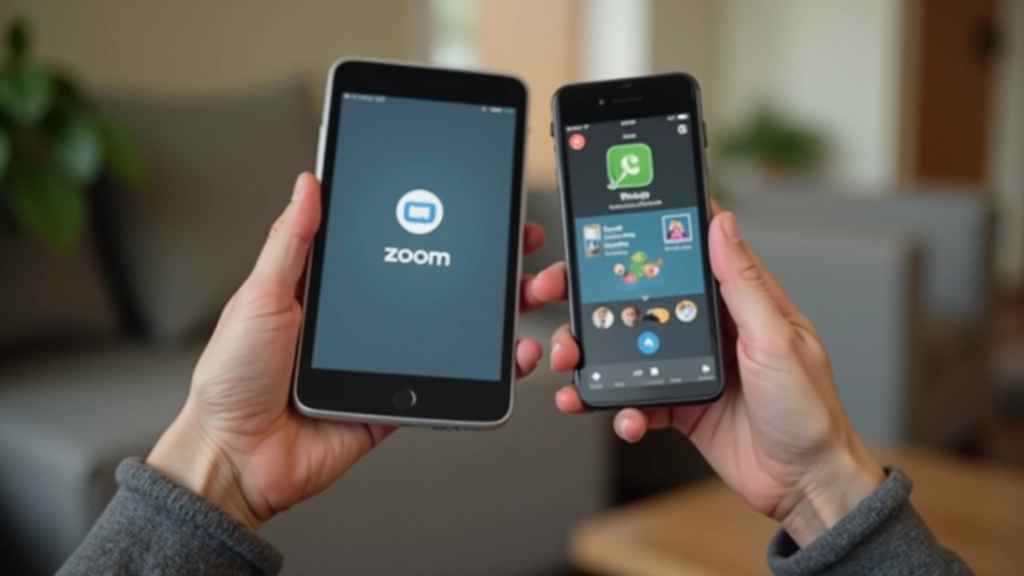
You've got three main options for accessing Zoom: computer, tablet, or phone. Most people find it easiest to use Zoom on a computer or tablet because the screen is bigger and you can see everyone better. But you can use whichever device you prefer.
For computers, head to zoom.us in your web browser. Look for the "Download" button near the top of the page. It'll automatically detect if you're using Windows or Mac and give you the right version. For iPad or Android tablet, search "Zoom" in the app store — it's free. The download takes just a few minutes on a normal internet connection.
Pro tip: You don't actually need to download anything to join a meeting. If someone sends you a meeting link, you can click it and join right in your web browser. But downloading the app gives you better video quality and more features.
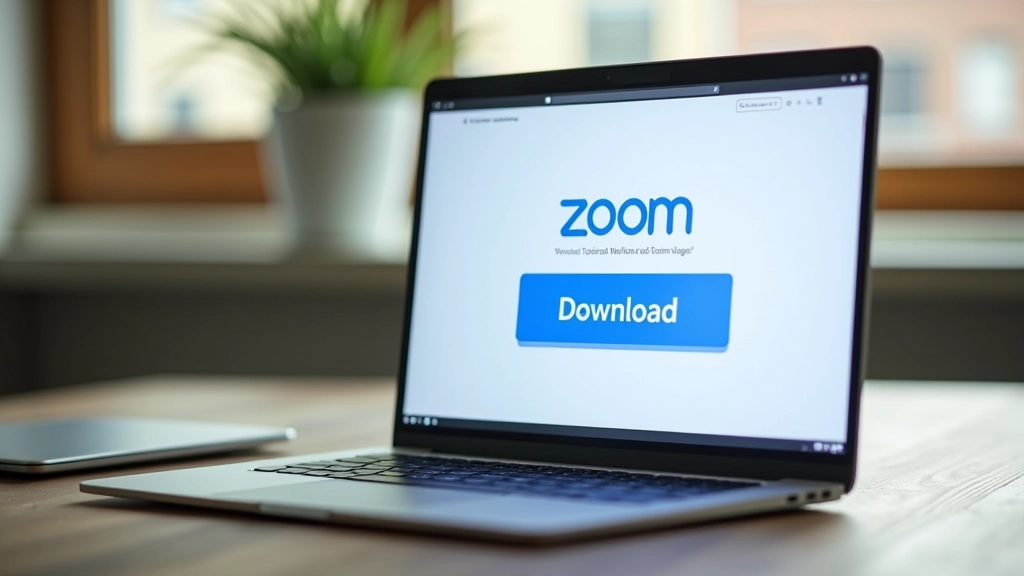
Digital tools and platforms update regularly — Zoom might look slightly different on your device than what we describe here. If something doesn't match exactly, check the official Zoom website or app for the latest details. Take your time getting comfortable with anything new.

Once you've downloaded Zoom, open it and look for "Sign Up" or "Create Account." You'll need an email address — use one you check regularly. Type in your name (your real name is fine, or a nickname if you prefer), then create a password. Make it something you'll remember. Write it down somewhere safe if that helps.
After you submit that, Zoom will send a confirmation email to the address you gave them. Check your email inbox (and spam folder, just in case) and click the link they sent. That's it — your account is ready. You've now got a Zoom profile that you can use anytime.
Setting up takes about 3-4 minutes total. You won't need to add payment information or anything like that. The basic Zoom account is completely free.
Someone's going to send you a meeting link. It'll look like a regular web address with "zoom.us" in it. When you're ready to join, just click that link. Zoom will open automatically (or ask which app you want to use — pick Zoom). You might see a screen asking for permission to use your camera and microphone. Click "Allow" so people can see and hear you.
Before you join, do a quick check: Is your camera lens clean? (A smudgy camera makes everything blurry.) Are you in a quiet spot? You don't need silence, but less background noise helps. Test your microphone by saying something — most Zoom meetings show a little sound meter so you know if your volume is good.
Click the meeting link someone sent you
Allow camera and microphone access when asked
Wait a few seconds for the connection to establish
Say hello — you're in!


Once you're in a meeting, you'll see some buttons at the bottom of your screen. The most important ones are pretty straightforward. The microphone icon with a line through it means you're muted — nobody can hear you. Click it to unmute so people can hear you talk. The camera icon works the same way — it turns your video on or off.
You'll also see a speaker icon (controls your volume), and usually a button to leave the meeting when you're done. Don't panic about accidentally hitting something — nothing breaks. If you mute yourself by accident, just click the button again to unmute. It's designed to be forgiving.
Most meetings also have a chat area where people type messages, and a "Participants" list so you can see who's in the call. Explore these gently — there's no way to mess things up for other people just by clicking around.
That's really all there is to getting started with Zoom. Download it, create an account, click a meeting link, and you're connected. The first time feels a bit new, but after you've joined one or two meetings, it becomes second nature. You'll be comfortable using it for staying in touch with family, attending community events, or joining groups that matter to you.
If something goes wrong — your camera won't turn on, you can't hear people, or you get disconnected — don't worry. These are common issues with easy fixes. We've got separate guides on troubleshooting audio and video problems. But most of the time, Zoom just works. Give yourself a little time to get comfortable, and you'll do fine.
Explore more guides to help you master video calling and messaging
Everything you need to know about messaging on WhatsApp. We'll cover text messages, photos, and group chats.

Learn to share your screen during Zoom calls so others can see photos, documents, or presentations.

Your camera or microphone isn't working? We'll walk through simple fixes like checking settings and permissions.