

Screen Sharing on Zoom: Show What's on Your Device
Learn to share your screen during Zoom calls so others can see photos, documents, or websites. Includes tips for sharing just one window or your entire screen.
Written by
Haraldmahrenholz Editorial Team
Editorial Team
Focused on practical, easy-to-follow guidance for learning video calling and messaging apps.
Why Screen Sharing Matters
Screen sharing transforms a regular video call into something much more useful. Instead of just talking, you're actually showing what you mean. Whether it's a family photo, a document you need to discuss, or a website you want to explore together, sharing your screen makes everything clearer.
It's one of those features that sounds complicated but really isn't. We'll walk you through the steps so you'll feel confident doing it the next time you're on a call.

How to Start Screen Sharing
Follow these numbered steps during your next Zoom meeting
Look for the Share Button
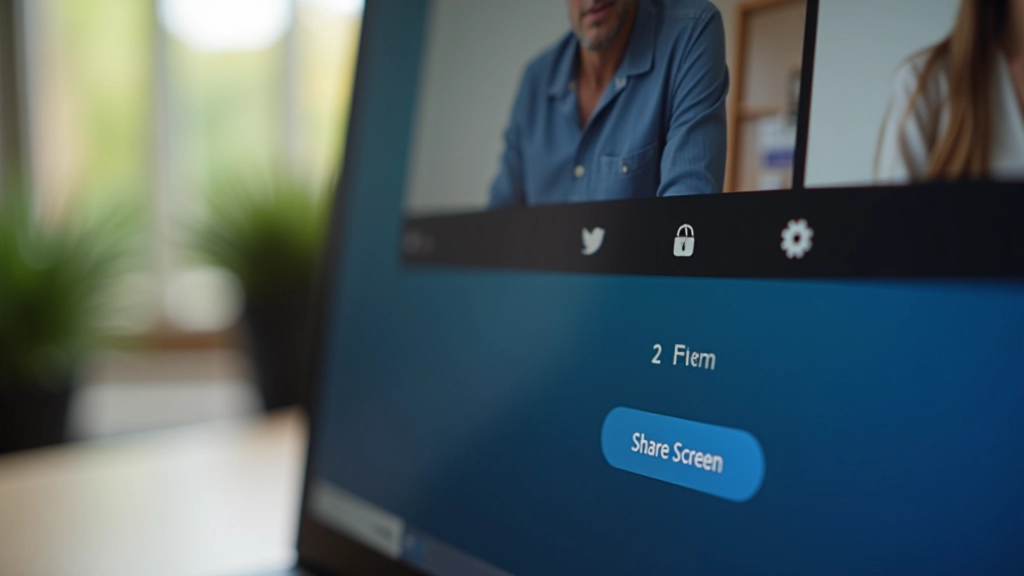
During an active Zoom call, look at the bottom of your screen. You'll see several buttons — microphone, camera, and others. Find the one that says "Share Screen." It usually has an icon that looks like a rectangle or computer monitor. On some versions, it might say "Share" with an upward arrow.
Choose What to Share
When you click Share Screen, a window opens showing your options. You'll see "Entire Screen" — that's the whole thing, everything on your monitor. Or you can pick a specific app or window. If you only want to show a single document or photo, pick that instead of sharing everything. This keeps your personal stuff private and makes it less confusing for people watching.

Click Share and You're Done
Once you've picked what to share, click the big green "Share" button. That's it. Everyone on the call now sees whatever you selected. You'll notice a red border around your shared screen — that's just Zoom's way of showing you're in sharing mode. When you're finished, click "Stop Share" at the top of the screen.

A Quick Note
Digital tools and platforms change over time — check the official Zoom website or app for the latest details, and take your time getting comfortable with anything new. Screen sharing works slightly differently depending on whether you're using the desktop app, web browser, or mobile version of Zoom.
Helpful Tips for Better Screen Sharing
Make your shared content clearer and easier to follow
Share One Window
Instead of sharing your entire screen, pick just the app or document you need. This way, if an email pops up or you get a notification, only the people on the call see what you're actually showing them.
Make Text Bigger
Before you share, zoom in on your document or website. Small text is hard to read on someone else's screen. If you're showing a photo album, make sure people can actually see the details. Nobody wants to squint.
Move Your Cursor Slowly
When you're pointing things out on a shared screen, move your mouse deliberately. Fast movements can be confusing. Use your cursor to guide people's eyes to exactly what you want them to see.
Check Your Audio
Screen sharing works best when people can hear you clearly. Before you start, make sure your microphone is working. Speak clearly and don't talk too fast. Pause occasionally so people have time to take it all in.
Watch Out for Passwords
Be careful when sharing your screen. If you're showing a bank website or email, make sure you don't accidentally display any sensitive information. It's easy to forget that everyone can see what's on your screen.
Stop Sharing When Done
Don't forget to click "Stop Share" when you're finished. Otherwise, everyone keeps seeing whatever's on your screen — including if you open a new window or get distracted browsing somewhere else.
Troubleshooting: What If It Doesn't Work?
Sometimes screen sharing doesn't start on the first try. It's usually something simple.
- Can't find the Share button? Look for it at the bottom of the Zoom window. If you still don't see it, check that you're the meeting host — some meetings don't allow participants to share.
- The button is grayed out? That usually means the meeting host has turned off screen sharing for participants. Ask them to enable it in their settings.
- People say they can't see your screen? Make sure you actually clicked the green Share button after selecting what to share. Sometimes it doesn't activate on the first click.
- Your screen looks tiny or cut off? Zoom is trying to fit everything on everyone's screens. Close any unnecessary windows to reduce clutter, or try sharing just one window instead of the entire screen.

You've Got This
Screen sharing sounds fancier than it really is. You're just showing people what's on your computer. The first time you do it, you might feel a bit nervous — that's completely normal. But once you've done it once, you'll realize it's really straightforward.
Start with something simple, like sharing a photo or a document. Talk through what you're showing. Listen if people ask questions. Before you know it, you'll be doing this without even thinking about it. And that's when video calls become genuinely useful instead of just talking into a screen.
Ready to learn more about Zoom?
Explore Getting Started with ZoomRelated Articles
Continue learning about video calling and messaging