

WhatsApp Messaging Essentials: Send, Share, and Connect
Master the basics of messaging, sharing photos, and staying connected with WhatsApp
Author
Haraldmahrenholz Editorial Team
Editorial Team
Written by the haraldmahrenholz editorial team, focused on practical, easy-to-follow guidance for learning video calling and messaging apps.
Getting Started with WhatsApp
WhatsApp is one of the world's most popular messaging apps, and it's actually pretty straightforward once you get the hang of it. Whether you're sending your first text message or sharing photos with family, we're here to walk you through it step by step.
The good news? You don't need to be tech-savvy to use WhatsApp. It's designed to feel natural and intuitive. We'll cover the essentials: how to send messages, share photos, and keep your conversations organized. By the end of this guide, you'll feel confident using all the main features.

Sending Your First Text Message
Sending a message on WhatsApp is simple. Open the app and look for your contact in the list. Tap on their name, and you'll see the chat window open up. At the bottom of the screen, you'll find a text box that says "Type a message..." Just tap there and start typing your message.
Once you've written your message, you'll see a send button — usually a paper airplane or arrow icon. Tap that button and your message goes straight through. You'll know it's been delivered when you see a small checkmark next to your message. One checkmark means sent, two checkmarks mean delivered to your contact's phone.
Don't worry if you make a typo — WhatsApp lets you edit messages after you've sent them. Just long-press on the message you want to change, tap "Edit," make your corrections, and send again. It's that easy.


Sharing Photos and Videos
One of the best parts of WhatsApp is how easy it is to share photos and videos with friends and family. You don't need to worry about file sizes or complicated attachments — it all works seamlessly. Open a chat with someone, and look for the attachment button. It's usually a paperclip icon or a plus sign at the bottom of the screen.
Tap that button and you'll see options to choose a photo from your gallery or take a new one right away. Select the photo you want, and you can add a caption if you'd like. Just type a message above the photo before you hit send. The photo will arrive instantly, and it'll show up clearly in the chat so both of you can see it.
Videos work exactly the same way. You can share clips from your phone's camera roll or record something new and send it immediately. WhatsApp automatically adjusts the quality so it doesn't take forever to send or use up all your data.
Keep Your Information Current
Digital tools and platforms change over time — check the official WhatsApp website or app for the latest details, and take your time getting comfortable with anything new. Features and button locations may vary slightly depending on your device and WhatsApp version.
Voice Messages and Voice Calls
Sometimes typing isn't the fastest way to communicate, especially if you want to send a longer message. That's where voice messages come in. Hold down the microphone icon at the bottom of the chat, speak your message, and then release. WhatsApp captures everything you say and sends it as a voice note. Your contact can play it back whenever they want.
Voice calls are just as simple. Tap the phone icon at the top of any chat, and your call goes through. You'll see the person's name, a timer showing how long you've been talking, and buttons to hang up or switch to video. WhatsApp uses internet calling, so you'll need a decent WiFi or data connection — but it works great for staying in touch across distances.
Video calls work the same way, except you'll tap the camera icon instead. Your contact sees you in real time, and you can chat face-to-face. It's one of the nicest features for keeping close with family and friends who live far away.

Organizing Your Chats
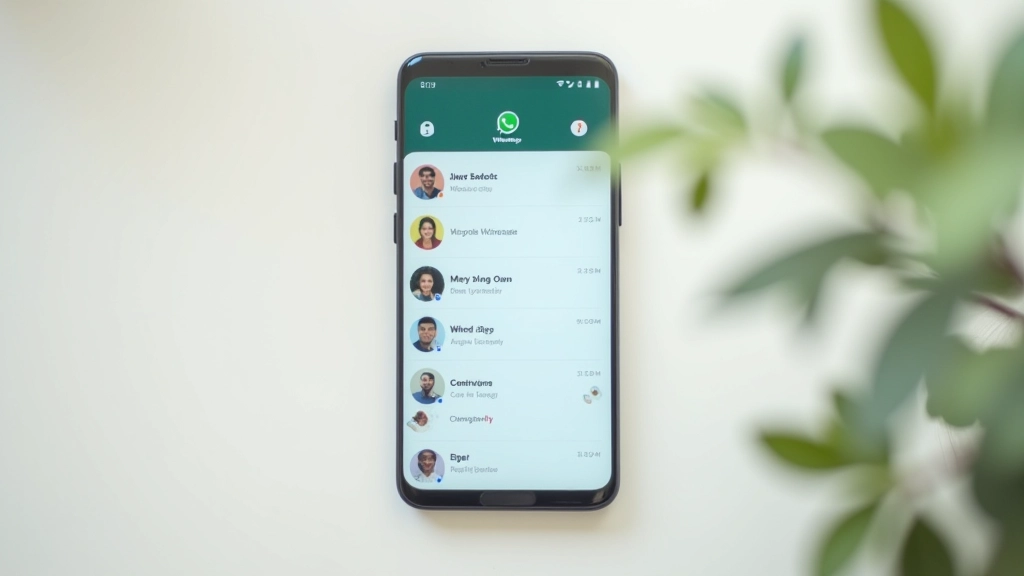
As you use WhatsApp more, you'll build up quite a few conversations. The app makes it easy to keep things organized. You can pin important chats to the top so they're always visible — just long-press a chat and select "Pin." This is great for conversations with family members or groups you message frequently.
You can also mute notifications from specific chats if you want to keep the conversation but don't need every message to ping your phone. Long-press the chat, tap "Mute," and choose how long you want it muted — anywhere from 8 hours to a year. When someone sends you a message, it'll still be there waiting for you, but your phone won't buzz or beep about it.
If you need to search for a specific message or conversation, WhatsApp's search feature is reliable and fast. Just swipe down on your chat list to reveal the search box, type what you're looking for, and it'll find messages, contact names, or even words within conversations. This saves you from scrolling through weeks of messages trying to find that one thing someone mentioned.
You're Ready to Connect
WhatsApp makes staying connected simple and straightforward. Whether you're sending a quick text, sharing family photos, or having a video call with someone across the world, you've got everything you need right in one app. The features we've covered here — messaging, photo sharing, voice calls, and organization — are the core of what WhatsApp does best.
Don't feel pressured to learn everything at once. Start with basic messaging, then explore voice messages, and when you're comfortable, try a voice or video call. Each feature will feel more natural the more you use it. And remember, there's no such thing as a silly question — everyone starts somewhere, and WhatsApp's design makes it forgiving and intuitive to learn.
The most important thing is that you're now equipped to reach out, share moments, and stay close to the people who matter. That's what WhatsApp is really about — connection.
Related Articles

Getting Started with Zoom: Download and First Call
Learn how to download Zoom, create your account, and join your first video meeting with confidence.

Screen Sharing on Zoom: Show What's on Your Device
Learn to share your screen during Zoom calls so others can see photos, documents, or presentations.

Audio and Video Quality: Fix Common Problems
Your camera or microphone isn't working? We'll walk through simple fixes like checking settings and permissions.